Create Your First Pipeline
This guide creates a simple pipeline that reads data, processes it with Python, and saves the result.
The finished pipeline will look like this:
1. Open Data Pipelines
Open:
Data Studio → Data Pipelines
Select New Pipeline.
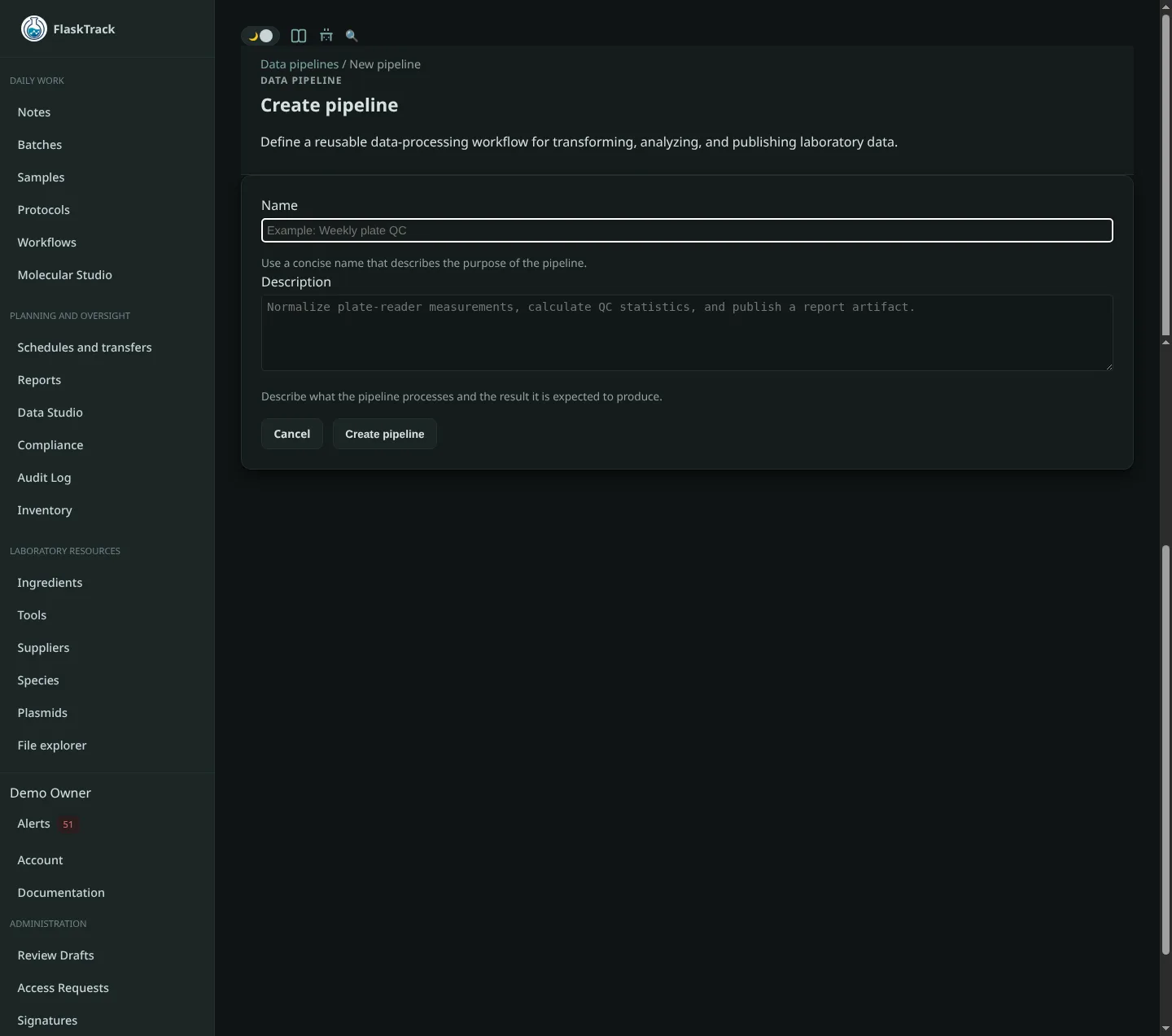
Enter a name and optional description.
Example:
Name:
Measurement normalization

Description:
Normalize completed measurement results for downstream analysis.
Select Create pipeline.
FlaskTrack creates the pipeline and its first draft.
2. Add a Data Source
Select Add source.
Choose the source type that matches the data you want to work with.
For this example, choose Flight SQL.
Enter a read-only query such as:
Save the block.
The source block provides an output named:
3. Add a Python block
Select Add Python.
Give the block a descriptive name, for example:
The default Python block uses an input named input and an output named output.
Enter:
import flasktrack as ft

table = ft.input_table("input").to_pandas()

mean_value = table["value"].mean()
table["normalized_value"] = table["value"] / mean_value

ft.output_table("output", table)
Save the block.
4. Add an Output block
Select Add output.
Example settings:
Name:
Save normalized measurements

Input:
input

Type:
Arrow table

Destination path:
analysis/normalized-measurements

Filename:
normalized.arrow
Save the block.
5. Connect the blocks
Connect the Data Source output to the Python input:
Then connect the Python output to the Output block:
Your graph should now be:
6. Publish the pipeline
Select Validate & Publish.
FlaskTrack checks the graph before publishing.
If something is incomplete, FlaskTrack keeps the pipeline as a draft so you can correct it.
Once published, the version is ready to run.
7. Run the pipeline
Select Run Pipeline.
FlaskTrack creates a new run.
Open the run to see:
- current status;
- each block;
- generated artifacts;
- Python or R logs;
- errors, if any;
- final saved FlaskTrack files.
8. Edit the pipeline later
Published versions cannot be edited directly.
To make a change:
- open the pipeline;
- create a new draft;
- edit the new draft;
- publish the new version.
Earlier runs remain connected to the version that produced them.
Next steps
Learn how each source works:
Learn how to write processing blocks: